Step 1: Open your Google Account settings
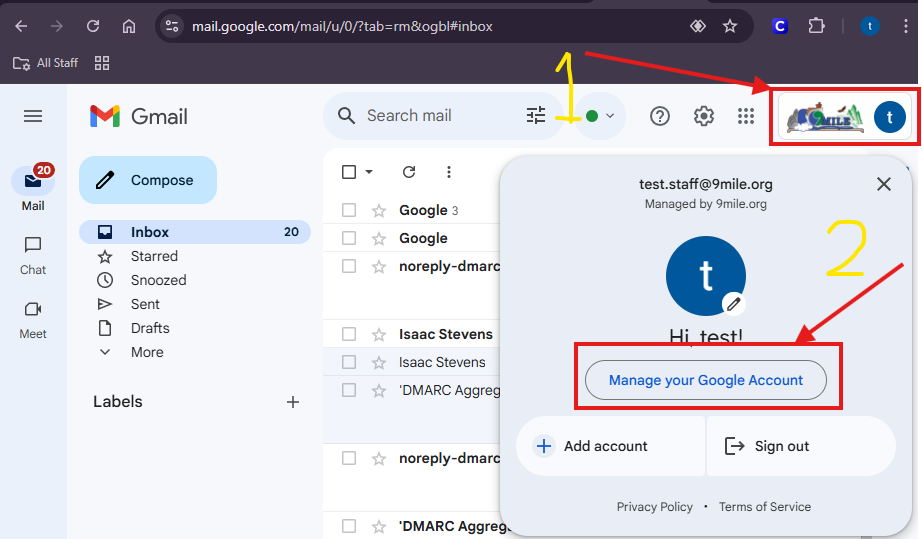
Sign in to Gmail at mail.google.com with your 9mile.org account. Click your profile picture in the top right corner, then click Manage your Google Account.
Step 2: Go to Security
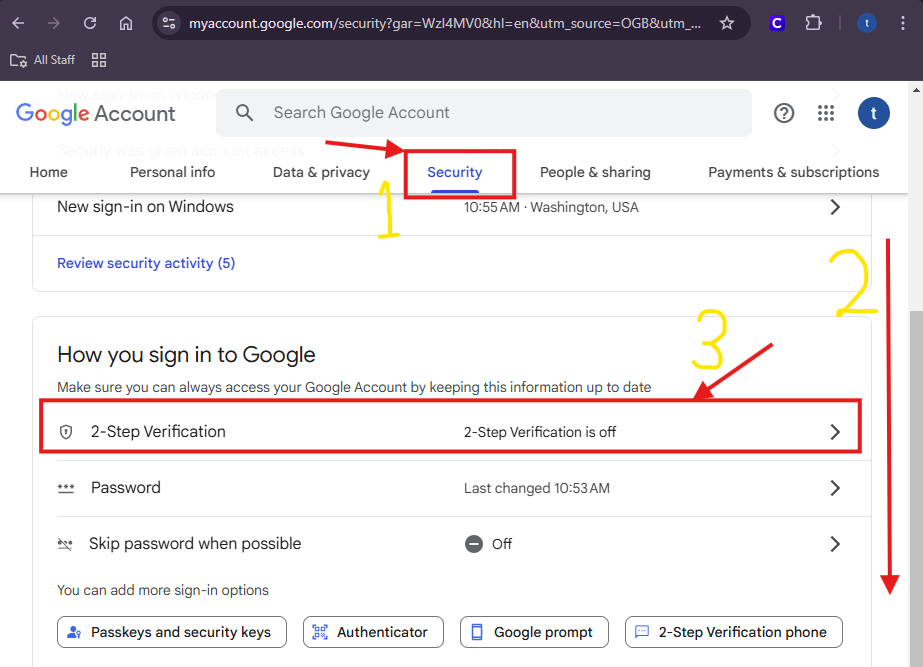
Click the Security tab across the top, then scroll down to the section called How you sign in to Google. Click the 2-Step Verification row.
Step 3: Pick a "second step" and turn it on
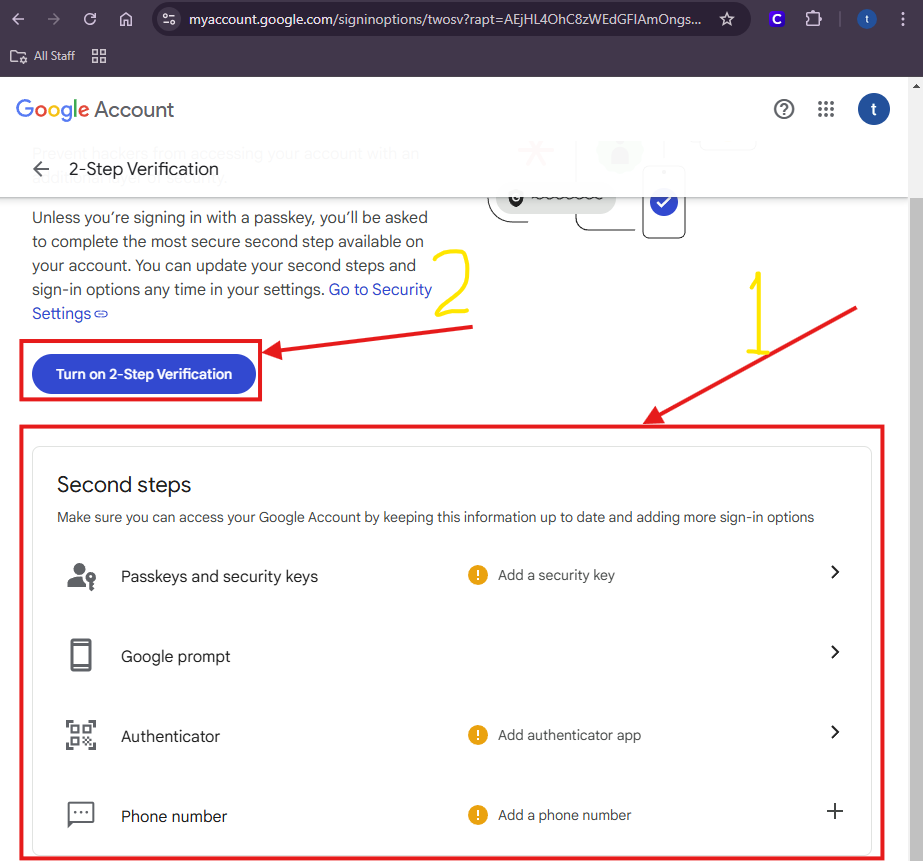
You will see a list of Second steps. Choose whichever makes most sense for you.
- Google prompt sends a tap-to-approve notification to a phone already signed in to your Google account. This is the quickest option for most people.
- Phone number texts you a 6-digit code.
- Authenticator uses an app like Google Authenticator or Microsoft Authenticator to generate codes. Works without cell service.
- Passkeys and security keys use your fingerprint, face, or a physical key.
Set up at least one, then click Turn on 2-Step Verification.
Tip!
Check the box to remember your device.
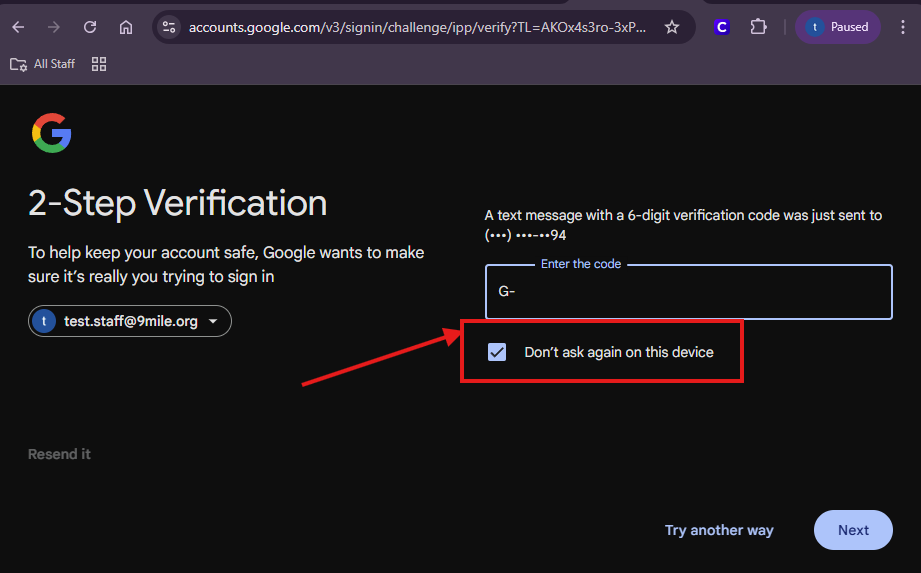
The next time you sign in, Google asks for your second step. Enter your code, then check Don't ask again on this device before you click Next.
This is worth doing on your classroom computer and your own phone. Skip it on shared or public computers.
Backup codes (optional)
Backup codes are one-time codes you can use if your phone is dead, lost, or out of service. They are the safety net for the day your usual second step is not available.
You can only generate them after at least one second step is already set up.
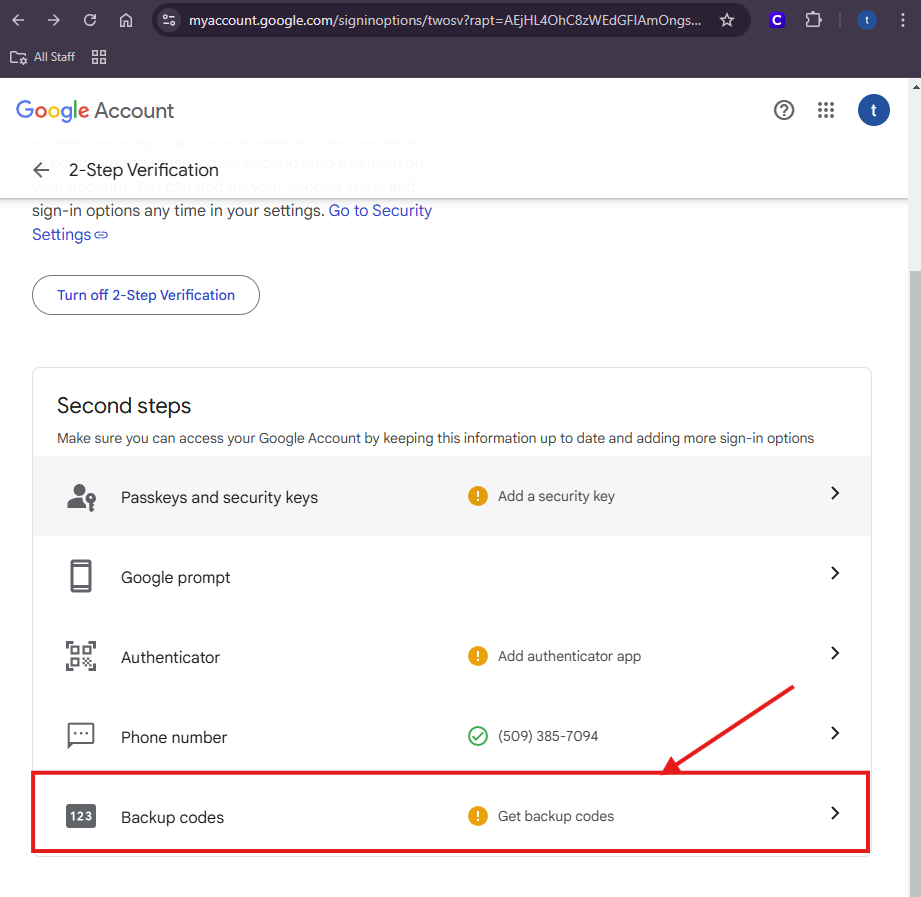
Open Backup codes
Go back to your 2-Step Verification page and click Backup codes at the bottom of the Second steps list.
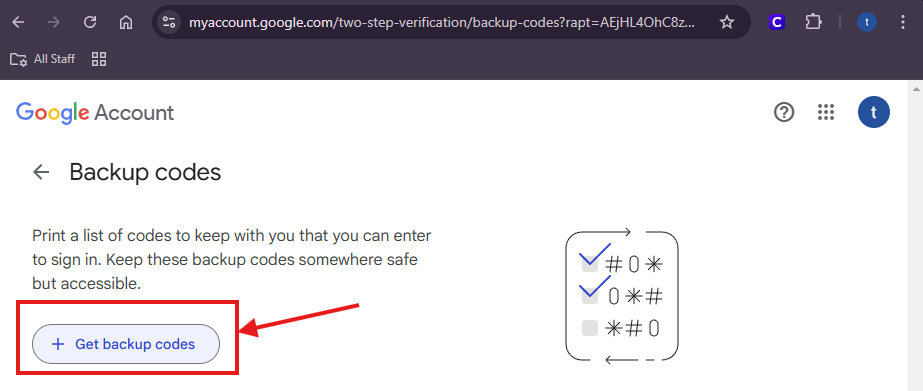
Generate your codes
Click Get backup codes.
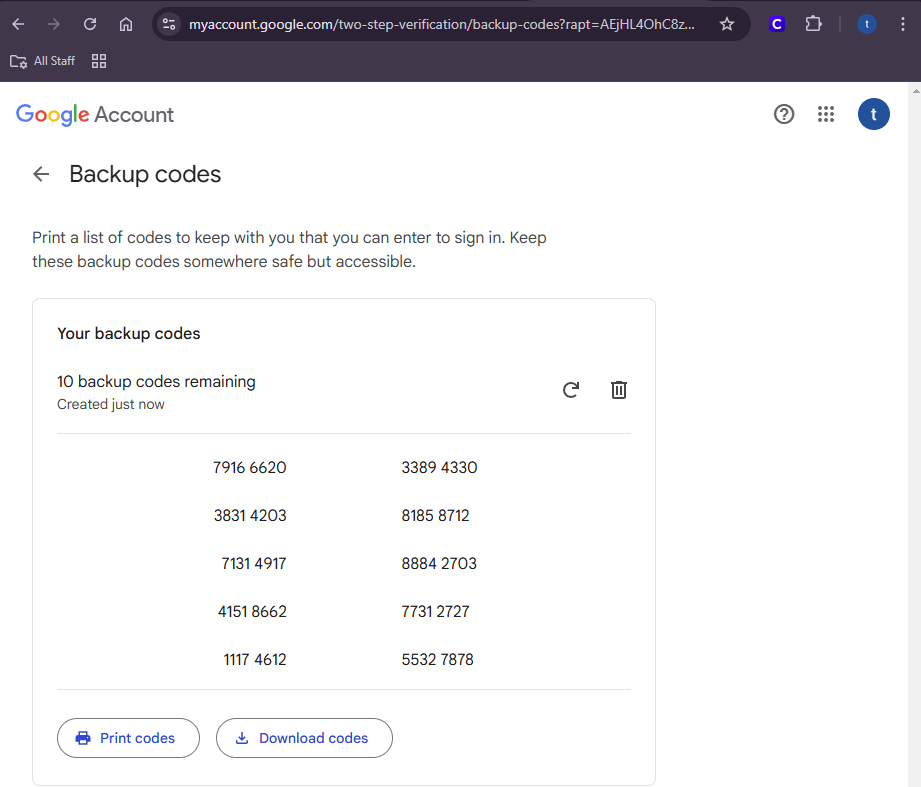
Save them somewhere safe
You get ten codes. Each one works once. Use Print codes or Download codes and keep them somewhere you can actually reach when you are locked out, like your wallet or a locked desk drawer.
Do not save them in an email to yourself. If someone gets into your email, they get your codes too.
*You can come back to this page any time to generate a fresh set. Doing that cancels the old ones.
Was this article helpful?
That’s Great!
Thank you for your feedback
Sorry! We couldn't be helpful
Thank you for your feedback
Feedback sent
We appreciate your effort and will try to fix the article