How to Use Lighspeed AccessScan for Teachers
What is AccessScan?
AccessScan is a tool in your Chrome browser that tells you if your students can open a website before you use it in class. It saves you from finding out a site is blocked in the middle of a lesson.
You'll find this tool installed in your chrome web browser. Use it any time you plan to share a link with students.
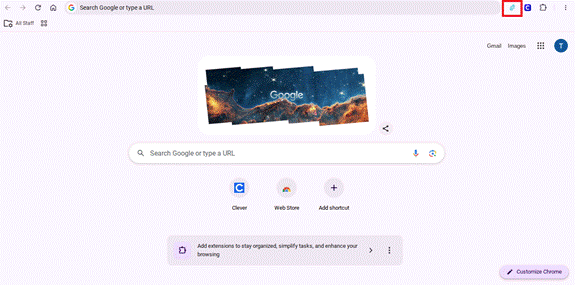
Step 1: Find the AccessScan icon
Look at the top right corner of Chrome, next to the address bar. The AccessScan icon is a small blue swirl (the Lightspeed logo), shown in the red box below.
Step 2: Check a website
- Go to the website you want students to use.
- Click the AccessScan icon. A small window opens, and the URL box already has the website filled in for you.
- In the Student email box, type the email of one of your students (for example, firstname.lastname@9mile.org).
- Click Check access.
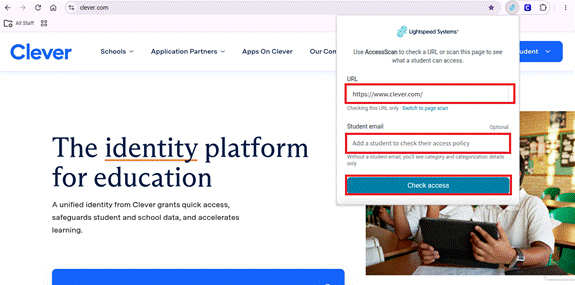
The student email is optional, but please add it. Without it, you only see what category the site falls under. With it, you see if that student can actually open the site.
Want to check everything on the page, like embedded videos and games? Click Switch to page scan under the URL box before you click the button.
Step 3: Read the results
Your answer shows at the bottom of the window.
- Green "Allowed for this student" means you are good to go. Your students can open the site.
- Red "Blocked" means students will not be able to open it. See the next section for what to do.
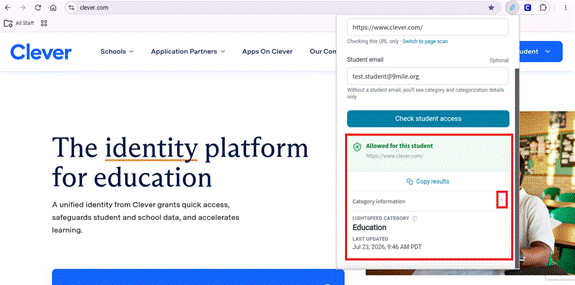
Click the small arrow next to Category information to see how Lightspeed labels the site (like "Education"). The Copy results button copies everything so you can paste it into an email or IT help ticket.
If a site is blocked that should be open...
Click Copy results, then paste them into a help ticket to the tech department along with a quick note on how you plan to use the site. Try to check sites prior to your lesson so we have time to review them.
Was this article helpful?
That’s Great!
Thank you for your feedback
Sorry! We couldn't be helpful
Thank you for your feedback
Feedback sent
We appreciate your effort and will try to fix the article